

Academy Wallet
The money from your sales, in your school's account.
The Academy Wallet is your school's receiving account. See the balance and the statement of every sale, withdraw by Pix or TED, pay bills and issue invoices without leaving the dashboard.
- Pix and TED withdrawals
- Statement for every sale
School account
You open the account in the dashboard.
The wallet is a sub-account opened for your school at Asaas, a payment institution authorized by the Central Bank of Brazil. Academy acts as the technology integrator. Opening it includes an identity check.
Financial services provided by Asaas
Choose the account
Use your Global Account or open an account just for this school.
Holder details
An individual with a CPF or a company with a CNPJ. You review everything before moving on.
Activation
Activation has a payment step, which you complete by Pix, card or boleto.
Address and documents
Send the documents and selfie requested. Companies also send the articles of association and the partners' documents.
Review
We email you when there is an answer. If something is rejected, the screen shows the reason and you send it again.
Balance and statement
You see every sale and every cent.
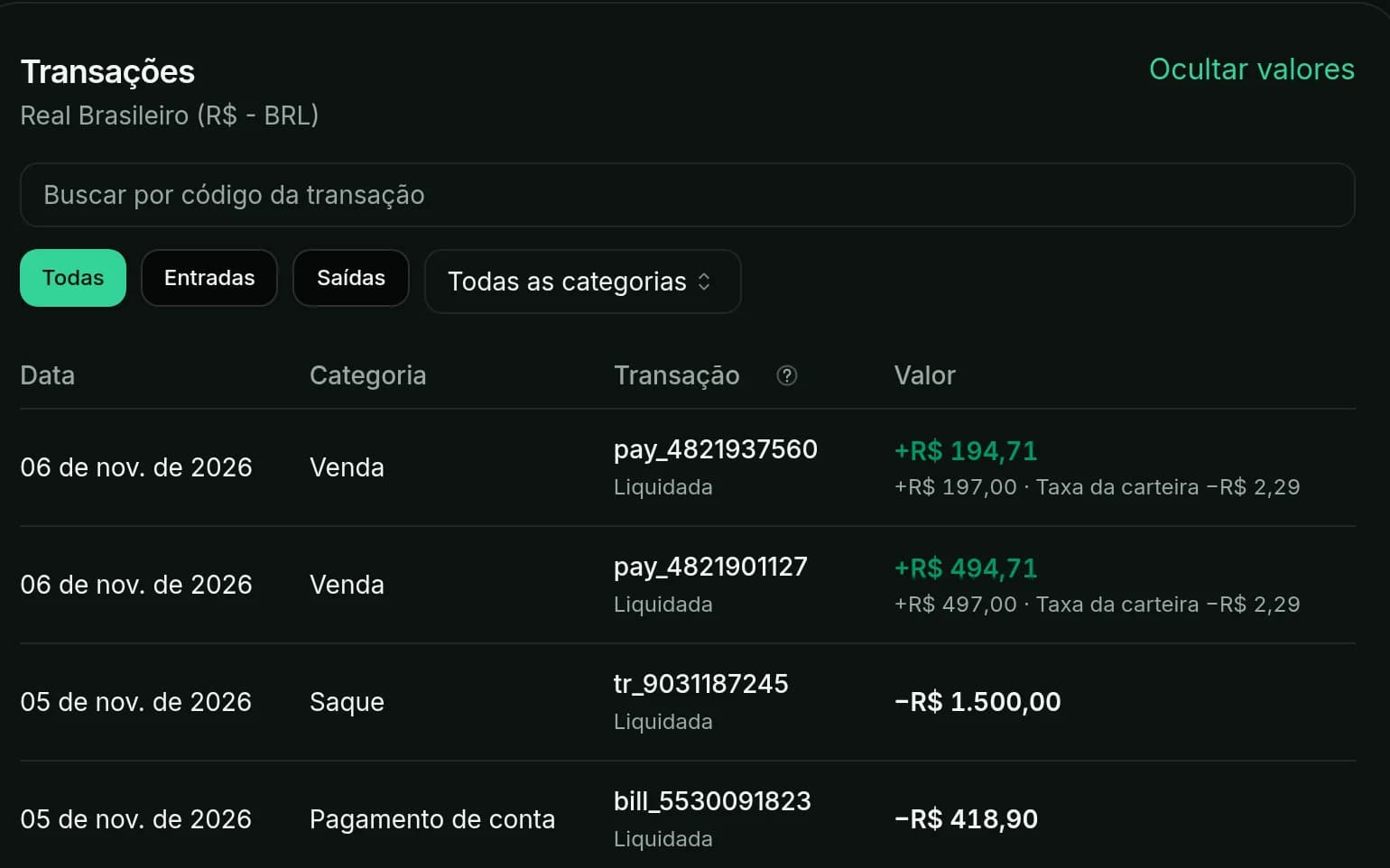
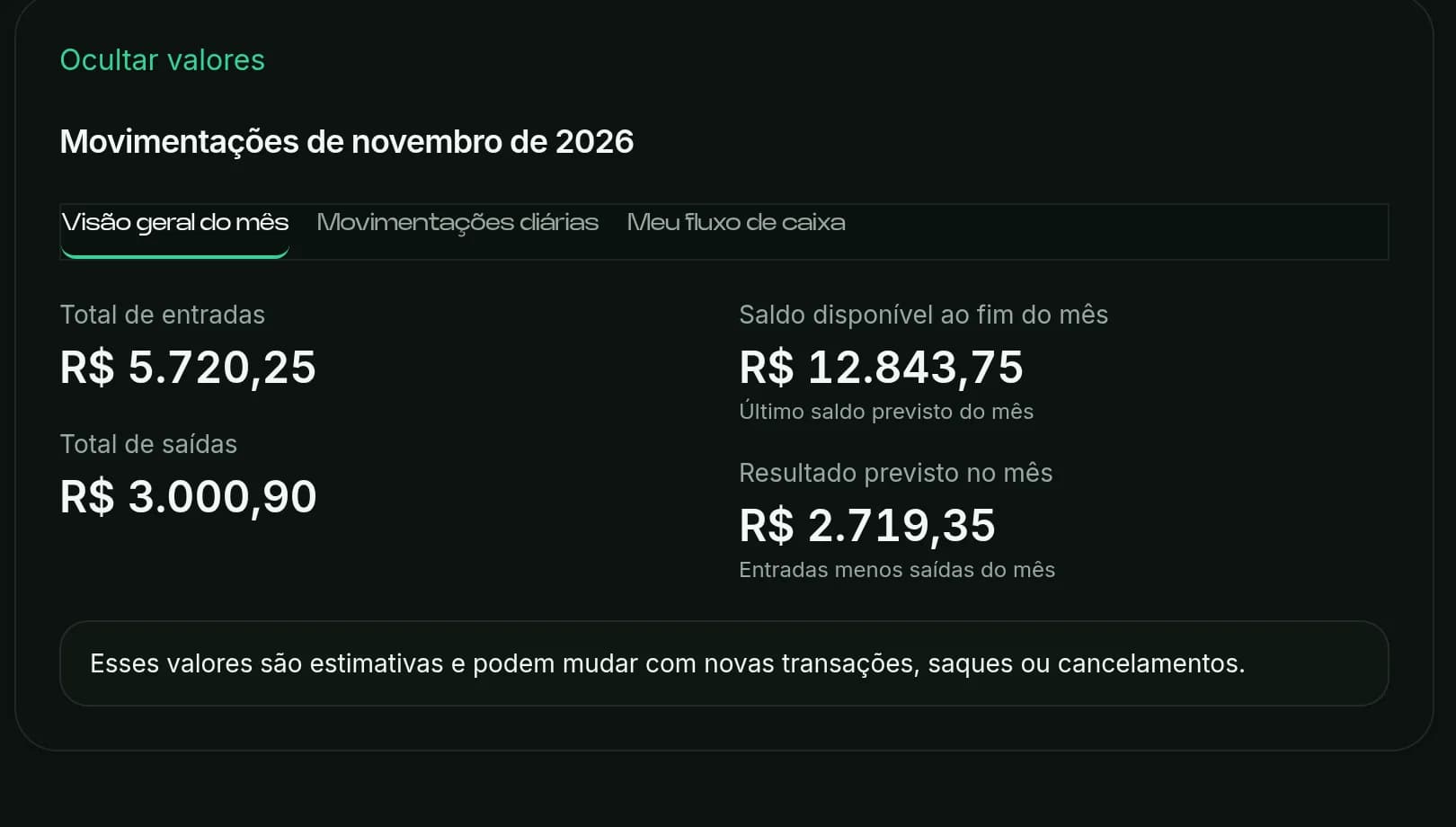
The Balance screen shows what you can withdraw, what is blocked and the total. The Statement lists every entry, and Movements shows the month.
- Available to withdraw: what is already released in the account.
- Blocked: an amount reserved to cover open refunds and disputes. It returns to available when the case is resolved.
- Each sale becomes one line in the statement, with the gross amount, the wallet fee and the net amount received.
- Filter by inflows and outflows or by category, and search by transaction code.
- Movements shows the month, the days and the cash flow, with what has come in and what is still to arrive.
- Hide values covers the numbers when someone is nearby.
Moving the balance
Withdraw, pay and receive without switching screens.
Everything uses the wallet balance. Before you confirm, the screen shows the fee and the total.
Pix or TED withdrawal
Simulate first: the screen shows the amount, the wallet fee and what you receive. To finish, you enter a code sent by email. The history shows the progress.
Pay boletos
Paste the barcode, check the beneficiary, due date, amount and fee, and pay with your balance. The receipt is available afterwards.
Pay Pix copy and paste
Paste the code from your bank app, check the recipient and confirm the payment.
Mobile top-up
Top up prepaid phones with your balance: enter the number, pick the amount from the list and confirm.
Receive by Pix QR
Generate a one-off Pix charge and copy the code. The money lands straight in the wallet.
Invoices
Register your tax details and issue or schedule service invoices (NFS-e). For subscriptions, automatic issuing is available once the registration is complete.
Fees
Every fee shows up before you confirm.
The table by plan lives on the Fees page. Here is what changes on your screen.
On sales
The statement shows the wallet fee of each sale, next to the gross and the net amount.
On withdrawals and payments
The simulation shows the fee and the total to be debited before you confirm.
No monthly fee
The wallet has no monthly fee. The amounts per sale, withdrawal and payment are on the Fees page.
Automatic anticipation
If the account is eligible, the owner can turn on automatic anticipation of card sales after reading and accepting the terms. The fee is proportional to the days anticipated, and each sale goes through the processor's review, so not every sale is anticipated. Manual anticipation is turned off.
Financial services provided by Asaas
In the Global Account
The same wallet works for people who promote.
Anyone with a Global Account uses the wallet in their own account: the student who becomes an affiliate and the producer with more than one school.
Balance and statement
Available to withdraw and to receive, with statement and movements.
Withdrawal after verification
Once identity is approved, withdrawals are requested in the Global Account. Affiliate commissions have their own queue, on the Affiliates screen.
Receive and pay
Pix QR to receive, bill payments and invoices, in the same quick access.
Frequently asked questions
Questions about the Academy Wallet
Who provides the financial service?
Asaas, a payment institution authorized by the Central Bank of Brazil. Academy acts as the technology integrator.
Who can move the money?
Only the school owner opens the account, withdraws, pays bills and handles invoices. Other admins can view.
When is the money from each sale available?
It depends on the payment method. The Balance screen shows what you can already withdraw and what is still to arrive. The timing by payment method is on the Fees page.
Does the wallet have a monthly fee?
No. The fees per sale, withdrawal and payment are on the Fees page and on the screen before you confirm.
Can I anticipate card sales?
The owner can turn on automatic anticipation when the account is eligible. Manual anticipation is turned off.
How do I follow a withdrawal?
In the withdrawal history, which shows each request as under review, processing or completed.
Receive your sales in your school's wallet.
Create your school, sell through the checkout and open the wallet when you are ready to receive.
Start on the Start plan, with no monthly fee.